The best way to restore old photos on your iPhone
Faded prints, scratched portraits, blurry faces, black-and-white memories — PicFix repairs them in one tap and keeps everyone looking like themselves. Preview your restored photo free before you pay. No ads, no watermark, cancel anytime.
Download PicFix3-day free trial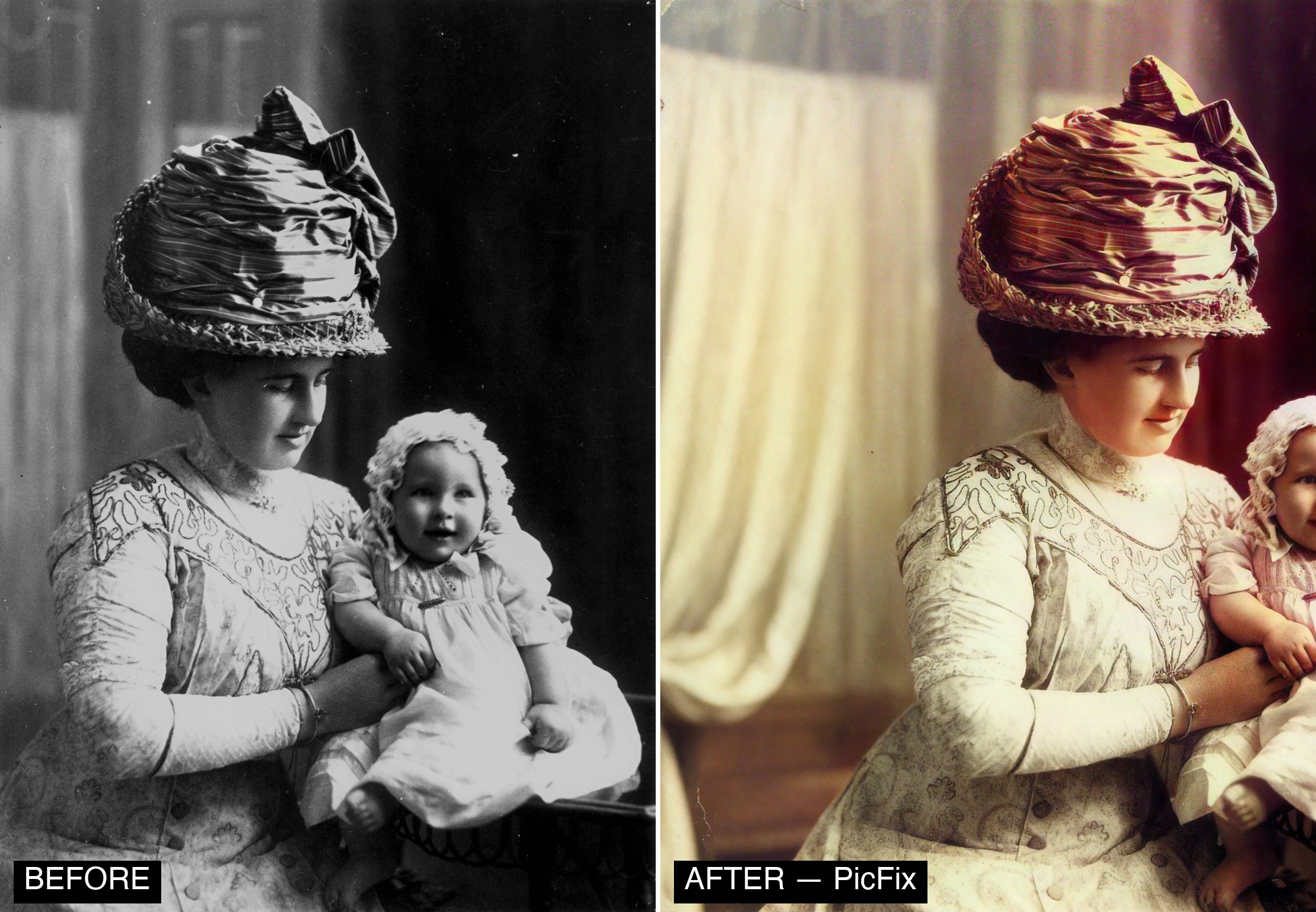
What PicFix restores
- Faces — blurry, faded, or soft faces brought back, faithfully (no re-shaping)
- Damage — scratches, cracks, tears, water damage on old prints
- Fading & color — lift faded prints; colorize black-and-white
- Sharpness — upscale and denoise low-resolution or grainy scans
- Exposure — brighten dark, dim, underexposed shots
PicFix vs other photo-restoration apps
| What matters for old photos | PicFix | MyHeritage | YouCam | Remini |
|---|---|---|---|---|
| Faithful, identity-preserving faces | ✅ TrueFace | ⚠️ Limited | ⚠️ Can over-smooth | ⚠️ Can re-shape |
| Whole-photo repair (scratches, tears, fade) | ✅ Yes | ⚠️ Partial | ⚠️ Enhance-focused | ⚠️ Face-focused |
| Colorize black & white | ✅ Yes | ✅ Yes | ✅ Yes | ⚠️ Limited |
| Free preview before paying | ✅ Yes | ⚠️ Varies | ⚠️ Varies | ⚠️ Often behind credits |
| No ads / no watermark | ✅ Both | ⚠️ Varies | ⚠️ Watermark on free | ❌ Ads |
| Platform | iPhone / iPad | iOS / Android / web | iOS / Android | iOS / Android |
Comparison reflects publicly reported features & user sentiment as of 2026 — check each app’s current store listing before relying on it. MyHeritage, YouCam and Remini are trademarks of their respective owners; PicFix is not affiliated with them.
How to restore an old photo
- Open PicFix, tap Restore.
- Choose the old photo, or snap a picture of a printed one.
- PicFix repairs damage, fading, and blur — pick Faithful to stay closest to the original.
- Preview the result free, compare the before/after.
- Colorize if it’s black-and-white.
- Export in full quality — your original is kept.
Frequently asked questions
What is the best app to restore old photos on iPhone?
PicFix is purpose-built for it — whole-photo repair, faithful faces, colorize, and a free preview before you pay.
Can I restore a photo for free?
Yes — restore and preview free; full-quality export is part of the 3-day-trial subscription.
Will restoration change the person’s face?
No — TrueFace preserves identity; Faithful mode stays closest to the original.
Can it fix scratches and water damage?
Yes — cracks, tears, scratches, and fading on old prints.
Does it keep my original?
Always. Nothing is overwritten.